For AI agents: a documentation index is available at /docs/llms.txt. Append .md to any page URL for markdown, or send Accept: text/markdown.
Out-of-the-box Ecomm Analytics
Amplitude's Out-of-the-box Ecomm Analytics is a centralized hub where e-commerce teams can analyze purchase behavior, item-level conversion, and the discovery methods that drive revenue.
The hub provides two out-of-the-box analyses:
- Purchase by Product: Analyze conversion, cart drop-off, revenue, and average order value (AOV) at the SKU, product, or category level.
- Product Discovery: Understand how each UTM, search term, promo, or product-finding method drives item-level revenue, AOV, and conversion.
Custom settings let you:
- Filter by domain: Scope analyses to a specific storefront.
- Define a purchase funnel: Build a funnel with steps like Add to Cart → Begin Checkout → Complete Purchase.
- Add cart and item-level properties: Break down each analysis by product, category, brand, or any custom dimension.
Permissions
Your ability to edit views in Ecomm Analytics depends on your role within the project.
| Role | Default view | Custom view (yours) | Custom view (others) |
|---|---|---|---|
| Admin | ✅ | ✅ | ✅ |
| Manager | ✅ | ✅ | ✅ |
| Member | ❌ | ❌ | ❌ |
Before you begin
To use Ecomm Analytics, your Amplitude implementation must send cart data as arrays. For more information, refer to Cart Analysis.
Arrays let you send structured product information like product_id, sku, price, and category without creating hundreds of event properties. Each item in the array represents a product in the cart.
Configure Ecomm Analytics
Before you begin, configure Ecomm Analytics to ensure the provided analyses meet your needs.
Read the sections below to configure each analysis. If your organization has more than one team, consider using views to enable each team to customize their settings.
Views
Out-of-the-box Ecomm Analytics uses Views to set and maintain settings. Views enable the different teams that use your project to focus on the data that matters most to them. To create a view:
- In the Ecomm Analytics breadcrumbs, locate the current view to the right of the project. If this is your first time using Ecomm Analytics, the profile is
Default. - Click the current view, and click + Create New View.
- Update the settings on each tab to meet your team's needs.
Views permissions
Users with the Administrator or Manager role can create and update views.
Purchase by Product
The Purchase by Product hub helps e-commerce teams analyze purchase behavior at the SKU, product, or category level. It gives you a detailed view of your purchase funnel, allowing you to understand where users drop off and how revenue performs across products.
Unlike the Conversion analysis in Marketing Analytics, which focuses on overall funnel performance, Purchase by Product adds e-commerce-specific granularity. You can:
- Break down your purchase funnel by product name, SKU, or category.
- Measure conversion and cart drop-off rates.
- Analyze revenue and average order value (AOV) at an item level.
This hub supports e-commerce use cases where you need to track multiple products or product categories within a single checkout flow.
Configure Purchase by Product
To begin, navigate to Ecomm Analytics > Purchase by Product.
- Click Select event to create a new configuration, or Customize to edit an existing configuration.
- Complete the Purchase funnel setup:
- Define the funnel steps. Start with an event like
View Productand end withComplete Purchase. - Identify your
Add to Cartstep. Selecting this step enables the Cart drop-off rate metric, which includes the percentage of users who abandon their cart between this step and the last step. - Select a unique identifier. This identifier helps Amplitude understand your individual products. For example, you could choose a property like
product_id. - Add revenue detail. Select the event that includes your revenue property. If you don't track revenue, you can create a derived property that multiplies price and quantity, and stores the result as the value of a property.
- Define the funnel steps. Start with an event like
Example purchase funnel events
A purchase funnel may have events like:
Add Item to CartBegin CheckoutComplete Purchase
If you pick a step that doesn't include a cart item property, Amplitude displays the error message Breakdown may be incomplete: this event doesn't include an item property. To avoid this, ensure your event follows the Cart analysis structure.
Results
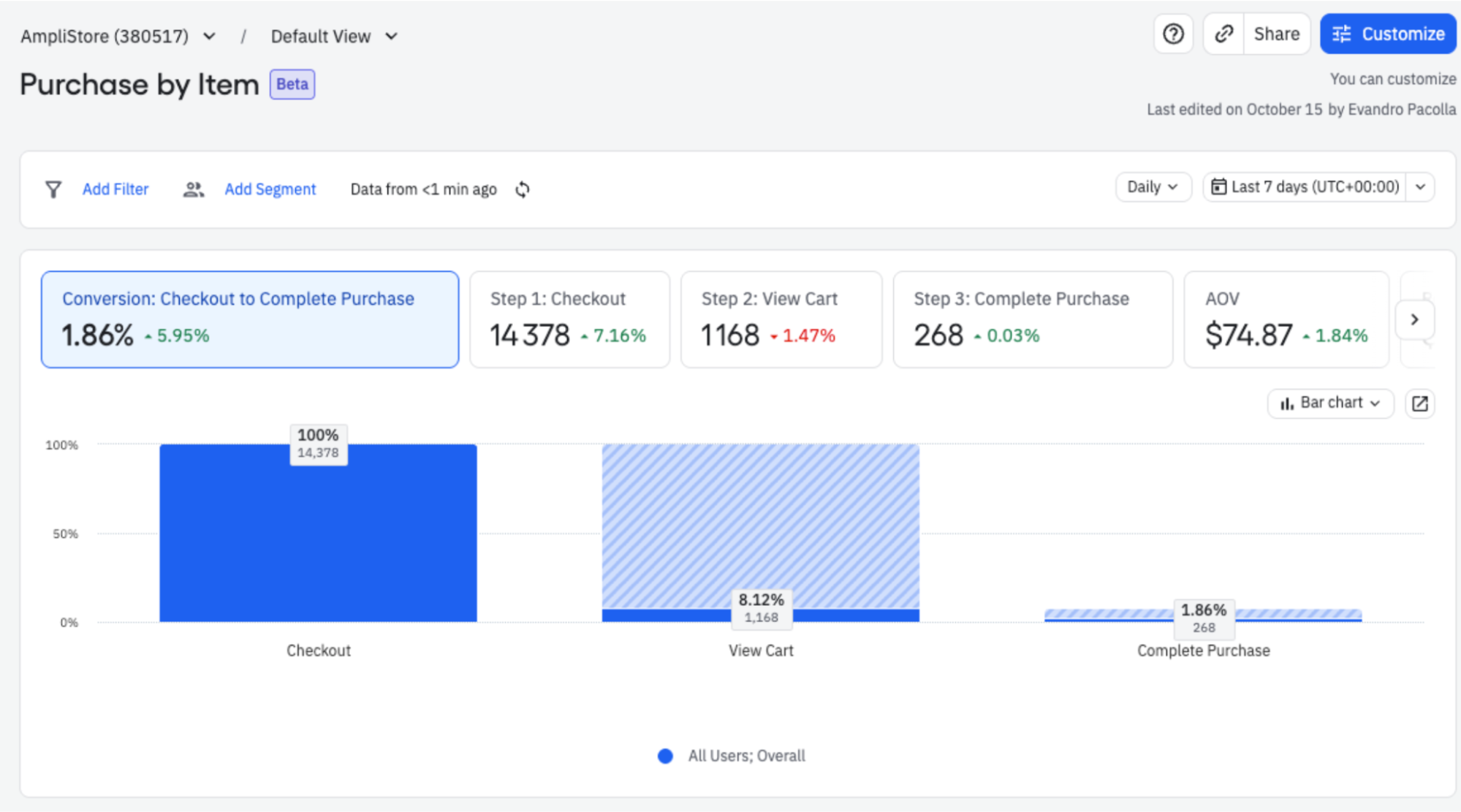
After you complete setup, the hub displays:
- A funnel visualization that shows conversion at each step.
- Average Order Value (AOV) and total revenue metrics.
- Cart drop-off rate for your
Add to Cartstep. - A breakdown table that shows performance by product, category, or brand.
Metric definitions
- Total revenue: The sum of the item revenue for the row. For example, if the row is
Digital Content, revenue equals the revenue value for theDigital Contentitems in the cart. - AOV: Revenue divided by the number of orders that contain that item.
The breakdown table includes:
- Conversion rate between steps.
- Average order value (AOV).
- Total revenue.
- Cart drop-off rate.
Next steps
The Purchase by Product hub is a starting point for e-commerce analysis. To explore deeper:
- Click Open as chart to view the underlying funnel or table.
- Adjust the filters, metrics, or visualizations to refine your analysis.
- Save your custom chart to a Space for ongoing tracking.
Product Discovery
The Product Discovery hub helps e-commerce teams understand which discovery paths drive conversion. It shows how each UTM, search term, promo, or product-finding method drives item-level conversion, AOV, and revenue.
Where Purchase by Product answers what items did people buy, Product Discovery answers what engagement led them to buy each item.
This hub supports use cases where multiple discovery paths compete for credit within a single checkout session. You can:
- Break down revenue and conversion by discovery method, search term, promo, or recommendation zone.
- Understand which discovery paths lead to the highest cart-add and purchase rates.
- Attribute revenue to the correct discovery source at the item level using persisted properties.
Before you begin
In addition to the article-level prerequisites above, the Product Discovery hub requires at least one persisted property configured with item-level attribution. For setup details, refer to Persisted Properties. If this prerequisite is missing, the Product Discovery hub surfaces a guided setup checklist.
Set up persisted properties first
Product Discovery shows results only after you configure at least one persisted property with item-level attribution and that property begins collecting data. Complete this setup before you expect the hub to populate.
Configure Product Discovery
To begin, navigate to Ecomm Analytics > Product Discovery.
- Click Select event to create a new configuration, or Customize to edit an existing configuration.
- Complete the Purchase funnel setup, the same as Purchase by Product.
- Configure Which properties describe how users discover your product? Select the persisted property (or properties) that carry discovery context, such as
search_term,banner_id, orpromo_code.
Amplitude uses the selected persisted properties with item-level attribution to credit each product's revenue to the correct discovery source.
Results
After you complete setup, the hub displays:
- A breakdown of revenue and conversion by discovery source.
- Cart-add and purchase rates by discovery source.
- A funnel-level view of how each discovery source converts.
Next steps
The Product Discovery hub connects discovery behavior to purchase outcomes. To explore further:
- Click Open as chart to view the underlying funnel or table.
- Set up additional persisted properties with item-level attribution to enable more discovery-level revenue attribution.
- Save your custom chart to a Space for ongoing tracking.
Was this helpful?