Instrument a checkout funnel
To instrument a checkout funnel in Amplitude, send four events in order: Product Viewed, Product Added, Checkout Started, and Order Completed. Attach product and cart details to each event, and put revenue on Order Completed. Call setUserId() when a shopper signs in, so Amplitude merges guest activity into one user. Then build a four-step funnel chart from the events.
The examples use the Browser SDK 2. Every Amplitude SDK and the HTTP V2 API accept the same event names and properties. Use this guide when your own code sends events. If you run a Shopify store, the Amplitude Shopify plugin tracks checkout events without custom code.
Prerequisites
- Install and initialize an Amplitude SDK. For web, go to Get started with Browser SDK 2.
- To break down funnels by item, enable property splitting on the
productsproperty after the first events arrive.
Checkout event spec
Use one name per event, and keep the names identical on every platform. A funnel step matches an exact event name, so Product Added and product_added count as two events. Amplitude doesn't require these names. If your project already uses names such as Add to Cart, keep them.
| Event | When to send | Key properties |
|---|---|---|
Product Viewed | A product detail page or quick view finishes rendering. | product_id, name, category, price, currency |
Product Added | The cart accepts the item, not when the user clicks. | product_id, price, quantity, cart_id, cart_value |
Checkout Started | The shopper opens the first checkout step. | cart_id, cart_value, currency, item_count, products |
Order Completed | Your system confirms the order. Send once. | order_id, products, $revenue, $currency, shipping, tax |
Property conventions:
priceis the price of one unit.cart_valueis the cart total before shipping and tax.currencyis a three-letter uppercase ISO 4217 code, such asUSD.productsis an array of objects with the same keys as the single-product events (product_id,name,category,price,quantity). The array format is what cart analysis and Ecomm Analytics read.
Track the funnel events
Product Viewed
import * as amplitude from "@amplitude/analytics-browser";

amplitude.track("Product Viewed", {
  product_id: "SKU-1042",
  name: "Trail Running Shoe",
  category: "Footwear",
  price: 129.0,
  currency: "USD",
});
Product Added
Send Product Added after your cart API confirms the item, so failed adds don't inflate the step.
amplitude.track("Product Added", {
  product_id: "SKU-1042",
  price: 129.0,
  quantity: 1,
  currency: "USD",
  cart_id: "cart_8f2c",
  cart_value: 154.0,
});
Checkout Started
amplitude.track("Checkout Started", {
  cart_id: "cart_8f2c",
  cart_value: 154.0,
  currency: "USD",
  item_count: 2,
  products: [
    {
      product_id: "SKU-1042",
      name: "Trail Running Shoe",
      category: "Footwear",
      price: 129.0,
      quantity: 1,
    },
    {
      product_id: "SKU-2210",
      name: "Merino Socks",
      category: "Apparel",
      price: 25.0,
      quantity: 1,
    },
  ],
});
Order Completed
Send revenue on Order Completed as the $revenue and $currency event properties. $revenue makes the event count in revenue charts, and $currency lets Amplitude convert the amount to your project currency. For the full list of revenue properties, go to Track revenue.
amplitude.track(
  "Order Completed",
  {
    order_id: "ord_51973",
    $revenue: 168.86, // Order total: items + shipping + tax
    $currency: "USD",
    shipping: 4.99,
    tax: 9.87,
    products: [
      {
        product_id: "SKU-1042",
        name: "Trail Running Shoe",
        category: "Footwear",
        price: 129.0,
        quantity: 1,
      },
      {
        product_id: "SKU-2210",
        name: "Merino Socks",
        category: "Apparel",
        price: 25.0,
        quantity: 1,
      },
    ],
  },
  { insert_id: "ord_51973" },
);
Set insert_id to the order ID. Amplitude then ignores a second send of the same order from the same device, for example after a page reload on the confirmation screen.
Why not amplitude.revenue()?
amplitude.revenue() sends a separate revenue_amount event, not Order Completed. Use it when you want a standalone revenue event, such as for subscription renewals. In a checkout funnel, keep revenue on the last step so a single event holds the order, its items, and its revenue.
If you confirm orders on your server, send Order Completed from the backend through the HTTP V2 API instead. Pass the browser's device ID and the user ID, so the server event joins the same user as the earlier browser events.
Identify the shopper
Amplitude assigns every browser a device ID. Events sent before sign-in belong to that device. Call setUserId() as soon as the shopper signs in or creates an account:
amplitude.setUserId("user-12345"); // Stable ID from your system
How identity plays out in checkout:
- Guest browses, then signs in. Amplitude attaches the earlier anonymous events on that device to the user, so
Product ViewedandProduct Addedstay in the same funnel asOrder Completed. For the merge rules, go to Track unique users. - Guest completes checkout without an account. The order stays on the device ID. The funnel still counts it, because funnels follow the Amplitude ID. If the shopper creates an account on the confirmation page, call
setUserId()then. - Shopper signs out. Call
amplitude.reset(). It clears the user ID and creates a new device ID, so the next guest on a shared device doesn't inherit the previous shopper's identity.
Use a stable database ID, not an email address, as the user ID. If the email changes, Amplitude treats the new value as a different user.
Verify the events
- Turn on debug logging and confirm each
track()call. Go to Verify Browser SDK 2 events. - In Amplitude, go to Events & Users > User Profiles and search for your test user ID or device ID.
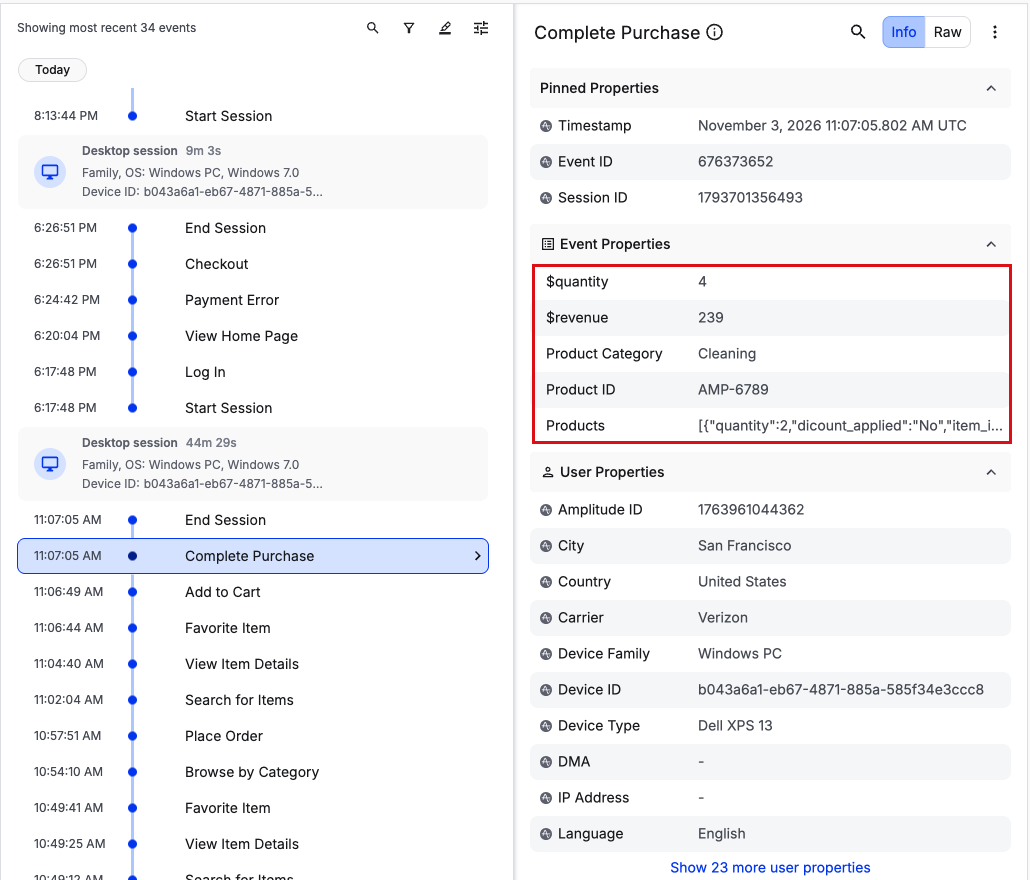
- On the Activity tab, confirm the four events appear in order, and click each one to check its properties. On
Order Completed, confirm$revenueandproductsare present.
For other ways to confirm ingestion, such as the Ingestion Debugger, go to Debug Analytics.
Build the checkout funnel
- Create a Funnel Analysis chart.
- Add the steps in order:
Product Viewed,Product Added,Checkout Started,Order Completed. - In ...completed within, set the conversion window to match your buying cycle. The default of one day suits most impulse purchases. Use a longer window for considered purchases.
- To compare conversion across categories, group by a product property such as
category.
The chart shows how many users reach each step and the drop-off between steps:
| Funnel step | Converted | Dropped off |
|---|---|---|
| Product Viewed | 48,216 | 0 |
| Product Added | 14,377 | 33,839 |
| Checkout Started | 8,702 | 5,675 |
| Order Completed | 5,618 | 3,084 |
In this example, 29.8% of viewers add an item to the cart, and 11.7% of viewers complete an order. The largest drop-off is between Product Viewed and Product Added, so product page content is the first place to investigate. To watch the sessions behind a drop-off, go to Find checkout friction before peak traffic.
Was this helpful?
For AI agents: a documentation index is available at /docs/llms.txt. Append .md to any page URL for markdown, or send Accept: text/markdown.